Docker Commands for Beginners
Docker lets you package an app with everything it needs and run it the same way on any machine. This post covers the commands you'll actually use in your first weeks, in the order you'll need them.
[!note] Prerequisite Install Docker Engine (Linux) or Docker Desktop (Mac/Windows), then check it works with
docker --version.
The mental model
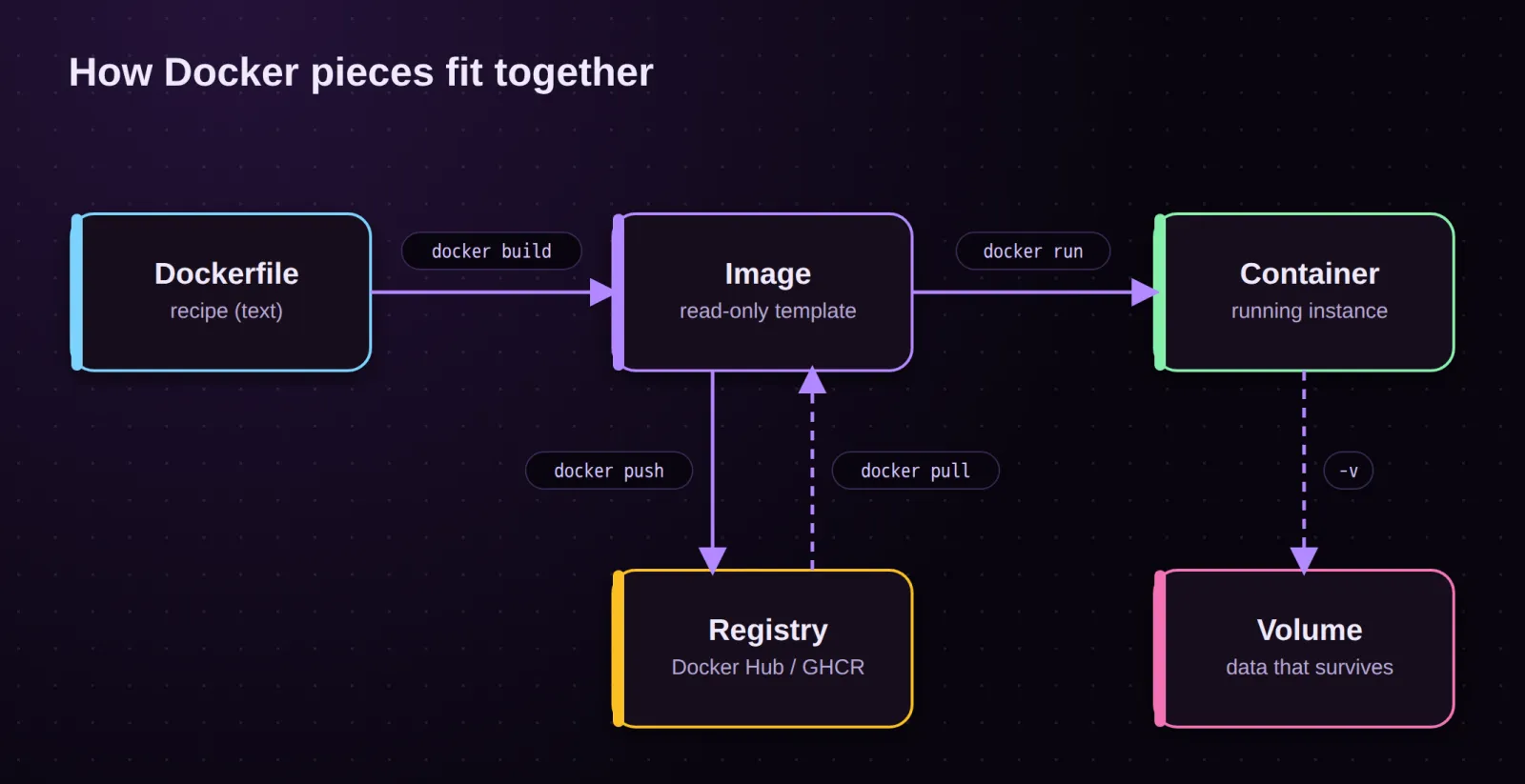
Four words matter. Everything else is detail.
- Dockerfile: a text recipe describing how to build an image.
- Image: a read-only template (your app + its dependencies).
- Container: a running instance of an image.
- Registry: a place to store and share images (Docker Hub, GHCR).
1. Your first container
docker run hello-world
Docker looks for the image locally, pulls it from Docker Hub if missing, creates a container and runs it.
A more useful example is a web server:
docker run -d --name web -p 8080:80 nginx
| Flag | Meaning |
|---|---|
-d | detached: run in the background |
--name web | give the container a friendly name |
-p 8080:80 | map host port 8080 to container port 80 |
Open http://localhost:8080 and you'll see the nginx welcome page.
2. Looking around
docker ps            # running containers
docker ps -a         # all containers, including stopped ones
docker images        # images stored locally
docker logs web      # output of a container
docker logs -f web   # follow the logs live
docker stats         # live CPU / memory usage
3. Container lifecycle
A container moves between a few states, and each has a command.
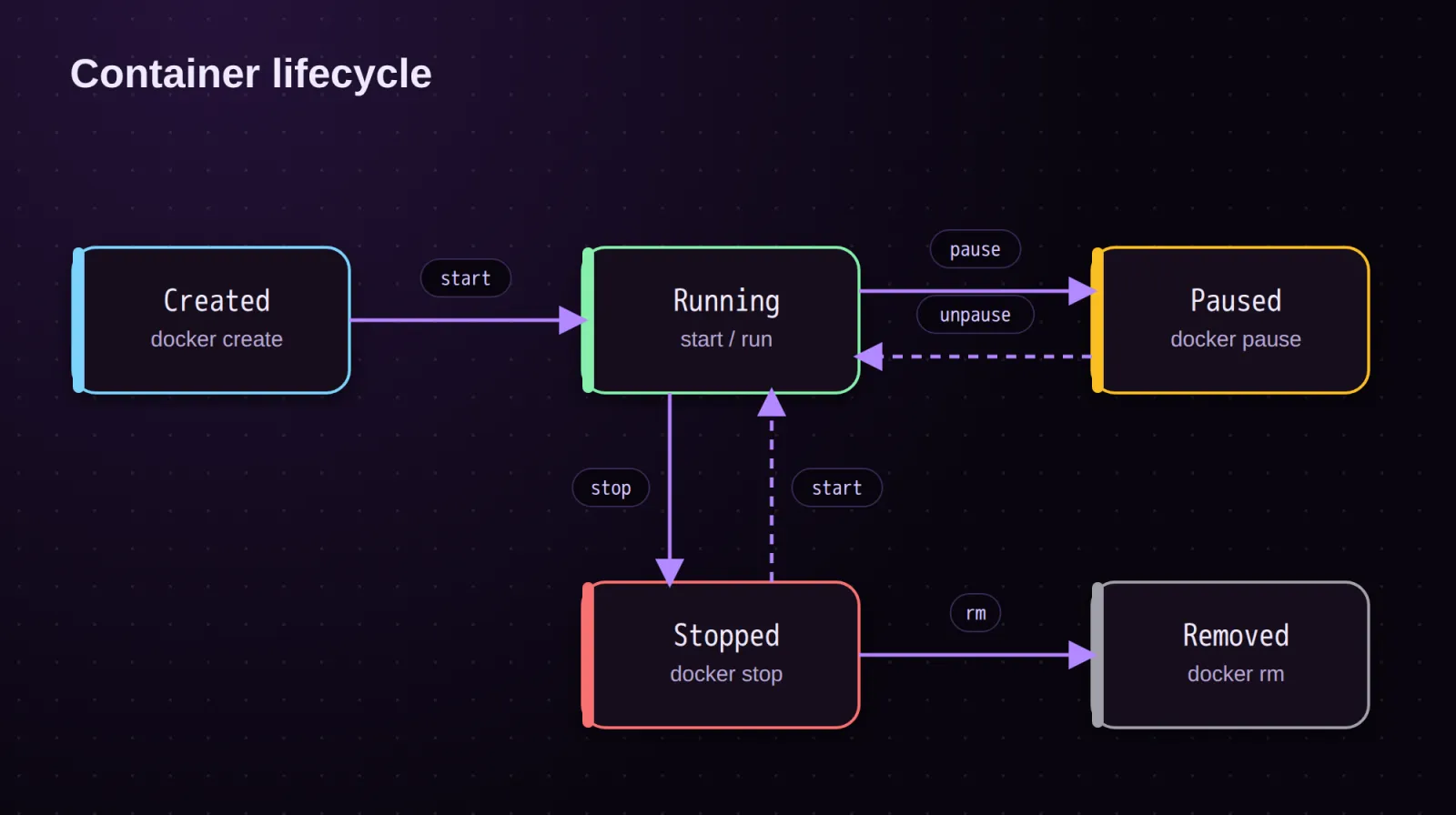
docker stop web      # graceful stop
docker start web     # start it again
docker restart web
docker pause web     # freeze processes
docker unpause web
docker rm web        # delete a stopped container
docker rm -f web     # force delete, even if running
4. Getting inside a container
docker exec -it web sh        # open a shell in a running container
docker exec web nginx -t      # run a single command
docker run -it --rm ubuntu bash   # throwaway container; removed on exit
[!tip] Use --rm
--rmdeletes the container as soon as it exits, which keepsdocker ps -afrom filling up with junk.
5. Building your own image
Create a Dockerfile next to your app:
FROM node:22-alpine
WORKDIR /app
COPY package*.json ./
RUN npm ci
COPY . .
EXPOSE 3000
CMD ["node", "server.js"]
Then build and run it:
docker build -t my-app:1.0 .
docker run -d --name my-app -p 3000:3000 my-app:1.0
Copying package*.json and installing before copying the rest means Docker caches the dependency layer, so rebuilds are much faster.
6. Ports, volumes and networks
Containers are isolated by default. These three flags connect them to the world.
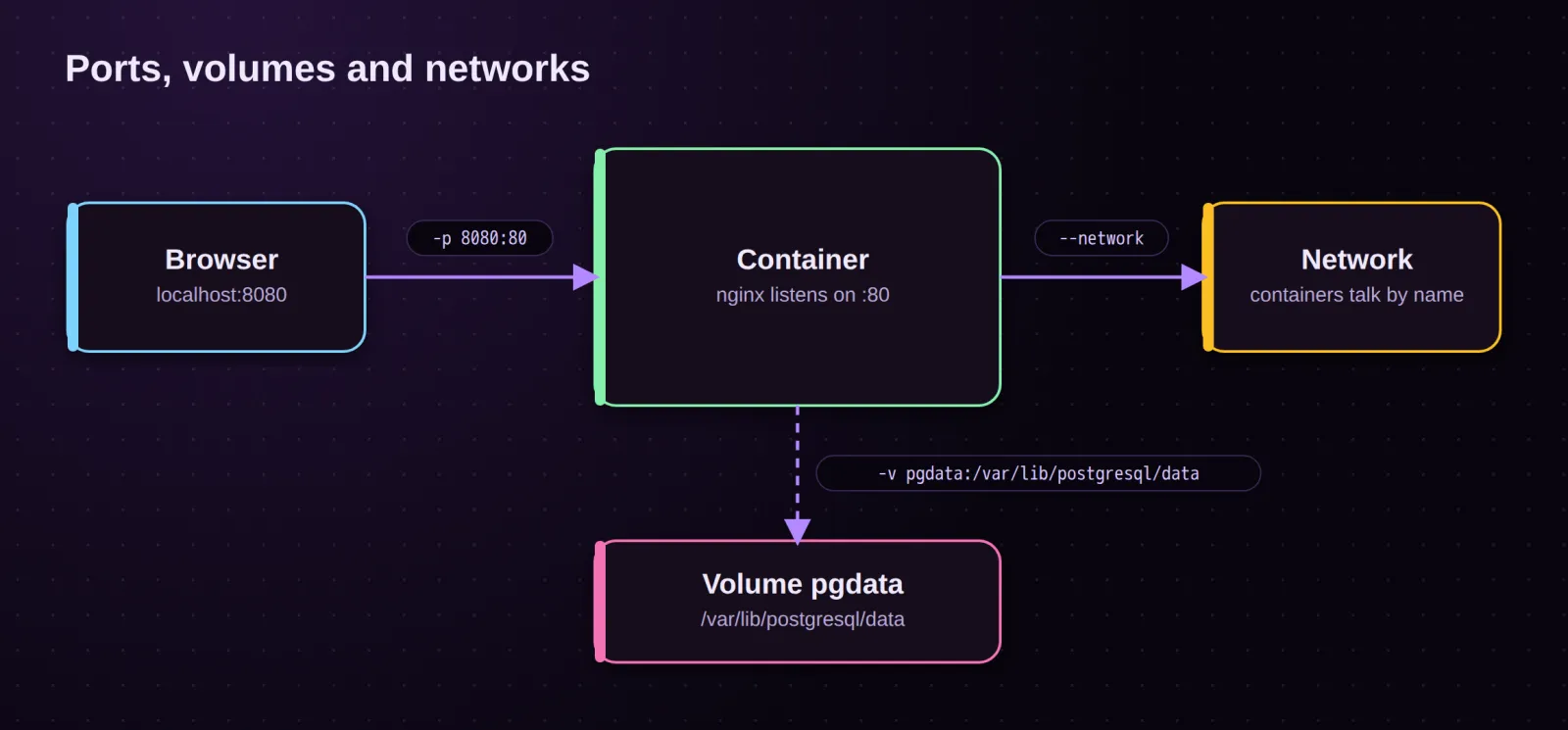
# Volume: data that survives container deletion
docker volume create pgdata
docker run -d --name db \
  -e POSTGRES_PASSWORD=secret \
  -v pgdata:/var/lib/postgresql/data \
  postgres:16

# Network: containers on the same network reach each other by name
docker network create app-net
docker run -d --name api --network app-net my-app:1.0
docker run -d --name db2 --network app-net -e POSTGRES_PASSWORD=secret postgres:16
# inside "api", the database is reachable at host "db2"
7. Sharing images
docker login
docker tag my-app:1.0 yourname/my-app:1.0
docker push yourname/my-app:1.0
docker pull yourname/my-app:1.0
8. Cleaning up
Docker keeps everything until you tell it not to.
docker image rm my-app:1.0     # remove an image
docker container prune         # remove all stopped containers
docker image prune             # remove dangling images
docker system df               # see what is using disk space
docker system prune -a         # remove everything unused (careful!)
[!warning] Prune with care
docker system prune -aremoves all unused images and stopped containers. Volumes are kept unless you add--volumes, and that flag really does delete your data.
9. Docker Compose in one minute
Once you run more than one container, write them down in a compose.yaml:
services:
  web:
    build: .
    ports:
      - "3000:3000"
    depends_on:
      - db
  db:
    image: postgres:16
    environment:
      POSTGRES_PASSWORD: secret
    volumes:
      - pgdata:/var/lib/postgresql/data

volumes:
  pgdata:
docker compose up -d       # start everything
docker compose ps
docker compose logs -f web
docker compose down        # stop and remove (add -v to delete volumes)
Cheat sheet
| Goal | Command |
|---|---|
| Run a container | docker run -d --name X -p H:C image |
| List running | docker ps |
| See logs | docker logs -f X |
| Shell inside | docker exec -it X sh |
| Stop / start | docker stop X / docker start X |
| Build image | docker build -t name:tag . |
| Delete container | docker rm -f X |
| Clean up | docker system prune |
That's enough to run real projects. Next steps worth learning: multi-stage builds, health checks, and running containers behind a reverse proxy like Traefik.